Features

Everything UrMac shows you, in detail.

The homepage is the introduction. This is the reference: what each part of UrMac shows, why it matters, and which plan includes it.

Overview

Your entire Mac. One clear picture.

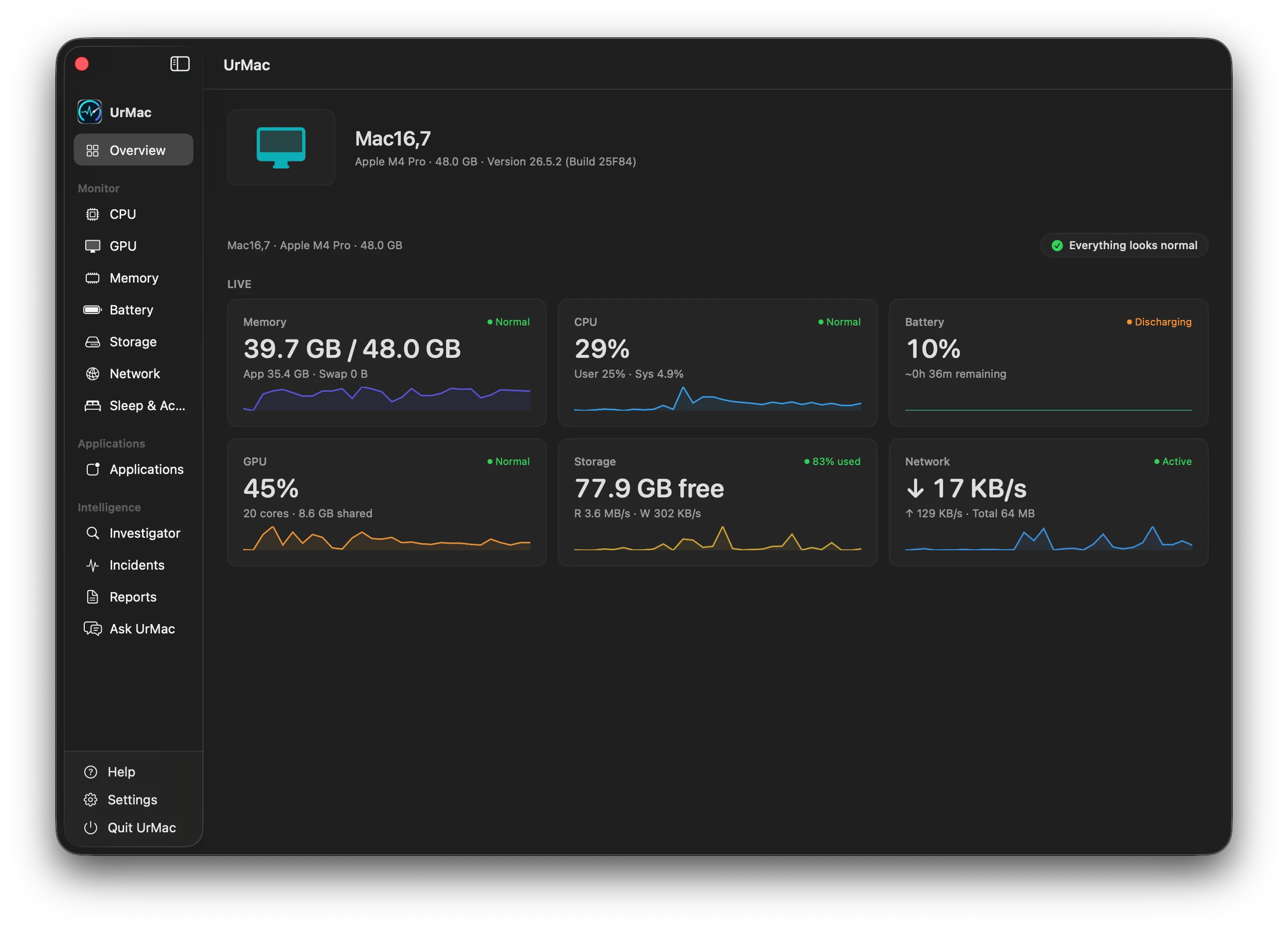
The Overview is where UrMac opens: every resource side by side, with live values and a plain status for each.

  • System overview. Your Mac's model, chip, memory, and macOS version sit at the top, so every reading has context.
  • Resource visibility. Memory, CPU, battery, GPU, storage, and network appear side by side with a recent trend for each.
  • Current activity. Live values update as you work, from processor load to download and upload rates.
  • Status at a glance. Each resource carries a plain status, and a summary tells you when everything looks normal.
UrMac Overview showing live memory, CPU, battery, GPU, storage, and network status in one window

Monitor

Every resource. Every detail.

Each resource has its own view with live values and recorded history across 1H, 6H, 24H, and 7D windows. UrMac also reports your Mac's thermal state as macOS provides it.

CPU

Understand what's using your processor.

Follow total CPU utilization over time, separate user and system activity, and see the applications using processor time. Put a busy moment in the context of your processor and its recent history.

  • Utilization and history
  • User and system activity
  • Processor and process context

GPU

See your graphics performance.

See GPU utilization alongside recorded history and graphics hardware details. Compare current activity with earlier periods to understand when your graphics workload changes.

  • GPU utilization
  • Recorded activity
  • Graphics hardware details

Memory

Know where your memory goes.

Read memory pressure alongside used and available memory, swap, and application usage. Historical context helps you distinguish a momentary increase from a change that persists.

  • Pressure, used, and available memory
  • Swap and application usage
  • Memory history

Battery

Understand your battery's behavior.

Keep charge level, battery health, charging state, and available power readings in view. Understand whether your Mac is charging or drawing from its battery, with recorded history for context.

  • Charge level and charging state
  • Battery health where reported
  • Recorded charge and power readings

Available readings depend on your Mac and the telemetry it provides.

Storage

Know where your storage stands.

See free and used capacity together with read and write throughput. Recorded disk activity gives you context for busy periods, while capacity shows how much room remains.

  • Free, used, and total capacity
  • Read and write throughput
  • Recorded disk activity

Network

See your network activity.

Follow your Mac's download and upload activity through recorded history. Selected-period averages and peaks help you compare traffic across time without attributing it to individual applications.

  • System-wide download and upload rates
  • Recorded network history
  • Selected-period averages and peaks

Period summaries use continuous recorded samples. Missing intervals are not counted as zero traffic.

Sleep

Understand your Mac's sleep and wake activity.

Review awake, asleep, and unrecorded periods, then compare sleep-session duration with recorded battery changes. See what was recorded while your Mac moved between work and rest.

  • Sleep and wake history
  • Recorded session duration
  • Battery changes across sleep

Sleep and wake activity is logged. Sleep-loss investigation is not currently listed as an available incident type.

Applications

Know what your applications are doing.

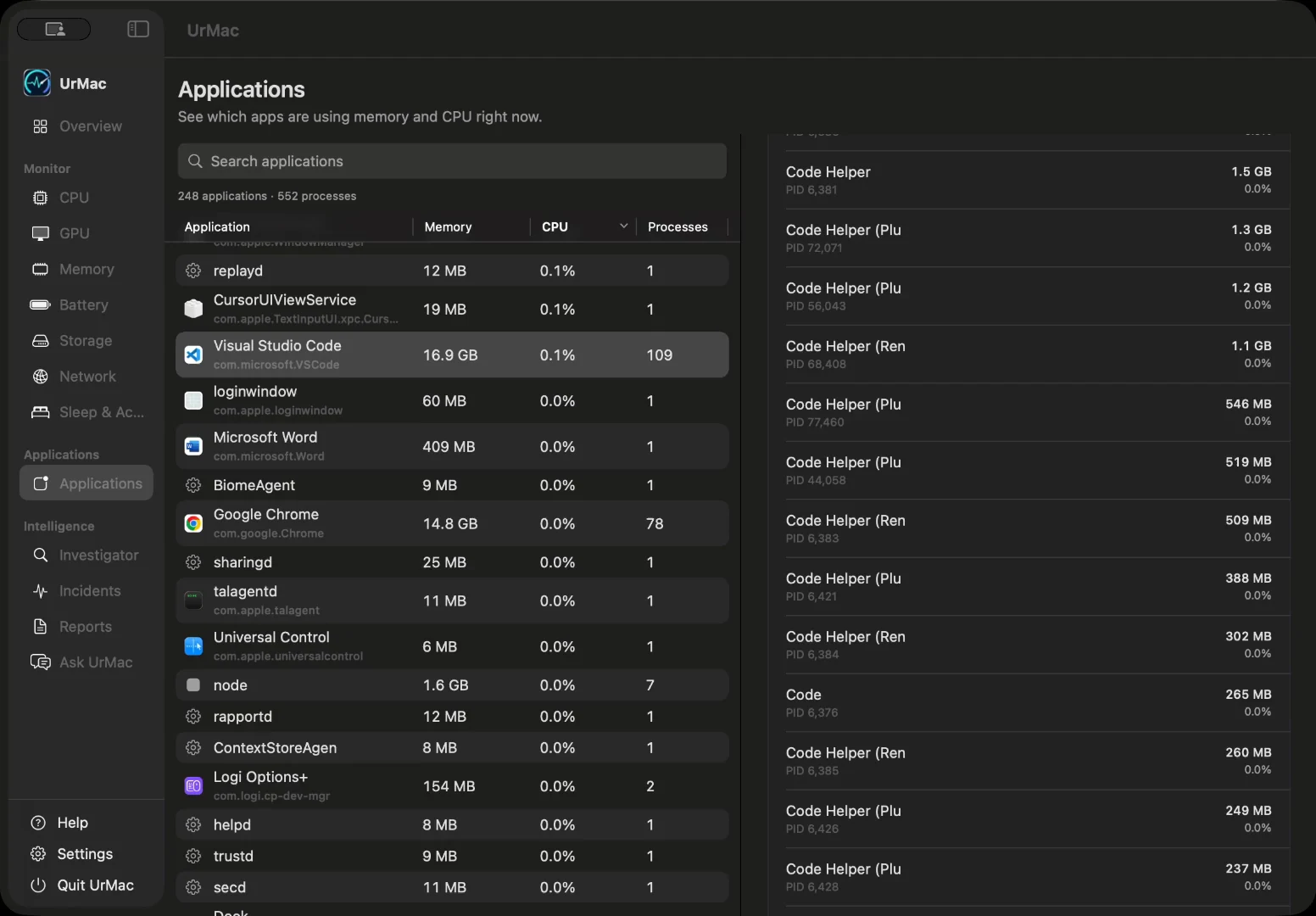
See which applications are using your processor and memory right now. Sort by what matters, find an app by name, and open it to inspect the processes behind it.

  • CPU use by application
  • Memory use by application
  • Sort by CPU, memory, name, or process count
  • Process count for every application
  • Inspect the processes behind an application

Application CPU is measured per logical core, so a busy app can exceed 100% on a multi-core Mac.

Screen recording of UrMac Applications being sorted by resource use and an application's processes inspected

Intelligence

Go beyond monitoring. Understand why.

UrMac Pro turns recorded history into evidence you can review, compare, and keep. UrMac AI is coming soon.

Investigator

Explore the evidence behind performance changes.

Bring recorded findings, historical baselines, and associated application activity together. Review the evidence, confidence, and available recommendations before deciding what deserves attention.

Incidents

Every slowdown has a story.

Review recorded performance incidents with their time window, severity, confidence, and related application evidence. Follow the timeline and available before, peak, and after context to understand the change.

Reports

Turn performance history into useful insight.

Review findings and incidents for a selected time window, filter by severity, and revisit the available recommendations. Export a report as text, CSV, or JSON to keep a record for later review.

Ask UrMac

Ask UrMac, coming soon.

In a future release, ask questions grounded in bounded, structured context from your Mac's recorded activity, incidents, and baselines. Answers will depend on the evidence available, rather than an assumed explanation for every change.

Explore UrMac Intelligence

Plans

Free, Pro, and UrMac AI

UrMac Free

$0

  • Live monitoring and menu-bar visibility
  • Overview, resource detail, and system status
  • Application monitoring and basic history

UrMac Pro

$24.99 · one-time purchase

  • Advanced history and personal baselines
  • Investigator, incidents, and recommendations
  • Reports and advanced analytics

UrMac AI

$7.99/month

Coming Soon

  • Includes all Pro features while subscribed
  • AI-powered answers will be available in a future release
  • UrMac AI is not part of the initial app launch.
  • Pro owners keep Pro; AI-only subscribers return to Free